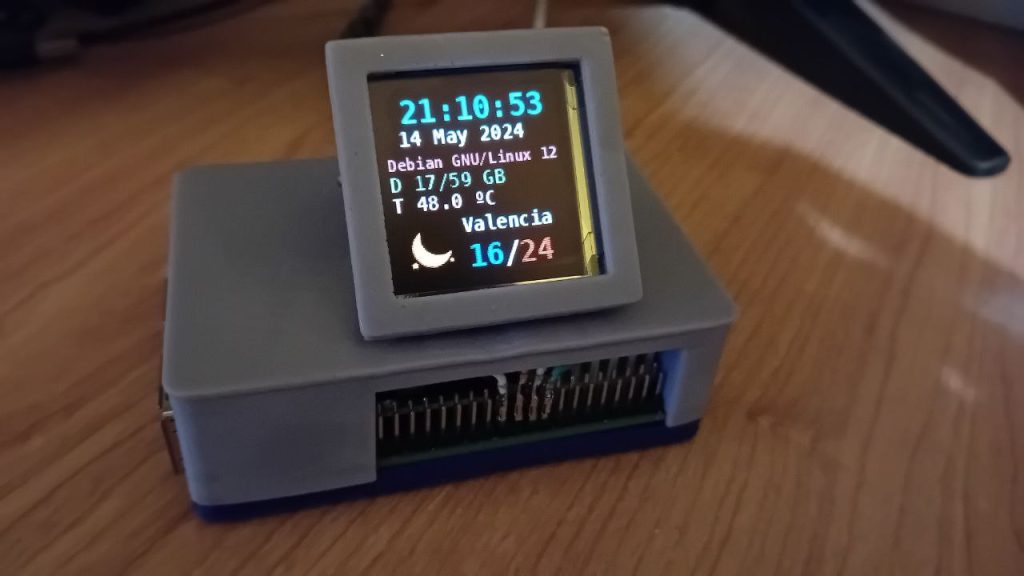
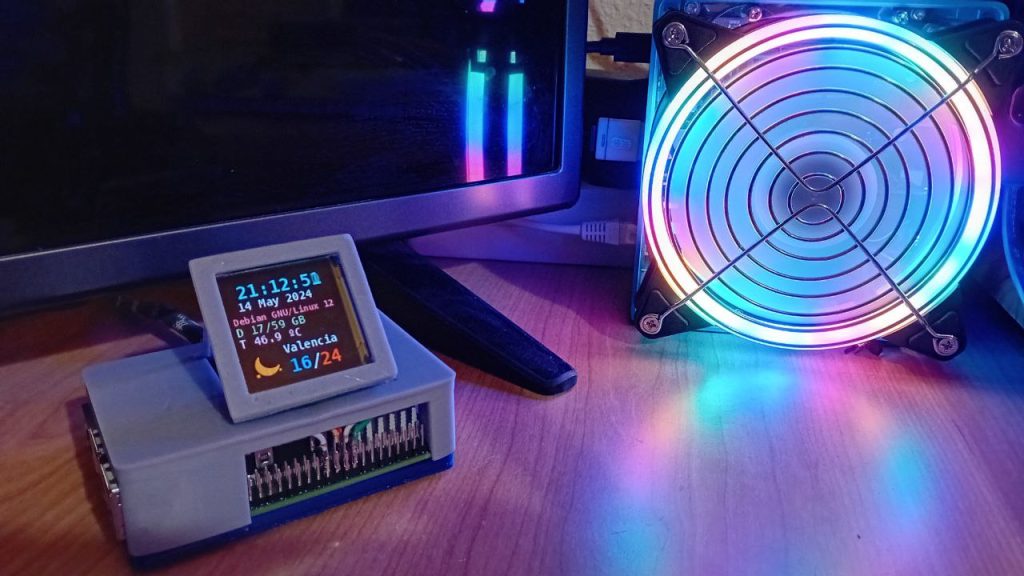
The heat arrived once again and I was feeling that my Raspberry Pi was too warm considering that it has the official built-in fan, with temperatures easily rising above 60ºC.
Since I installed Ubuntu on it, the fan didn’t seem to work right, but that’s something that has been solved in the recent versions of the kernel.
So here’s how you can set it up in Ubuntu and display it’s status.
Fan check
First of all let's check that our fan is working correctly by managing it manually.
Update your system so you can get the latest fixes that affect the fan. My latest version is Ubuntu Linux 24.04.2.
Now you should be able to turn on the fan manually by typing the following command in the terminal:
echo 4 | sudo tee /sys/class/thermal/cooling_device0/cur_stateA value of 4 will turn on the fan in it's maximum revolutions. You can change this value from 0 to 4.
If the above worked correctly you will hear significant noise from your fan. Now you can turn it off again by echoing a value of 0:
echo 0 | sudo tee /sys/class/thermal/cooling_device0/cur_stateSo you see that altering the value in the cur_sate file manually changes the fan speed. That's exactly what the fan daemon does once it's configured, so we will monitor this value later to find out if our fan is working (returned value != 0):
cat /sys/class/thermal/cooling_device0/cur_stateFan setup
The fan wasn't preconfigured in the earlier versions of the Ubuntu kernel for the Raspberry Pi. I'm not sure if it is now by default, but just check it by editing the config.txt file located in /boot/firmware and find out some lines similar to the following:
dtparam=fan_temp0=58000
dtparam=fan_temp0_hyst=10000
dtparam=fan_temp0_speed=200
If you cannot find them, just add them at the end of the file.
You may also adjust these values freely, considering:
fan_temp0=58000 indicates the trigger temperature that will turn on the fan
fan_temp0_hyst means the temperature reduction that turns off the fun (10000 below 58000 = 48000)
fan_temp0_speed indicates the fan speed, from 0 to 255
So that's our fan setup to run at 200rpm if the temperature is above 58ºC and turn off if it reduces 10ºC (~48ºC).
Now apply these changes by rebooting the system.
Fan monitoring
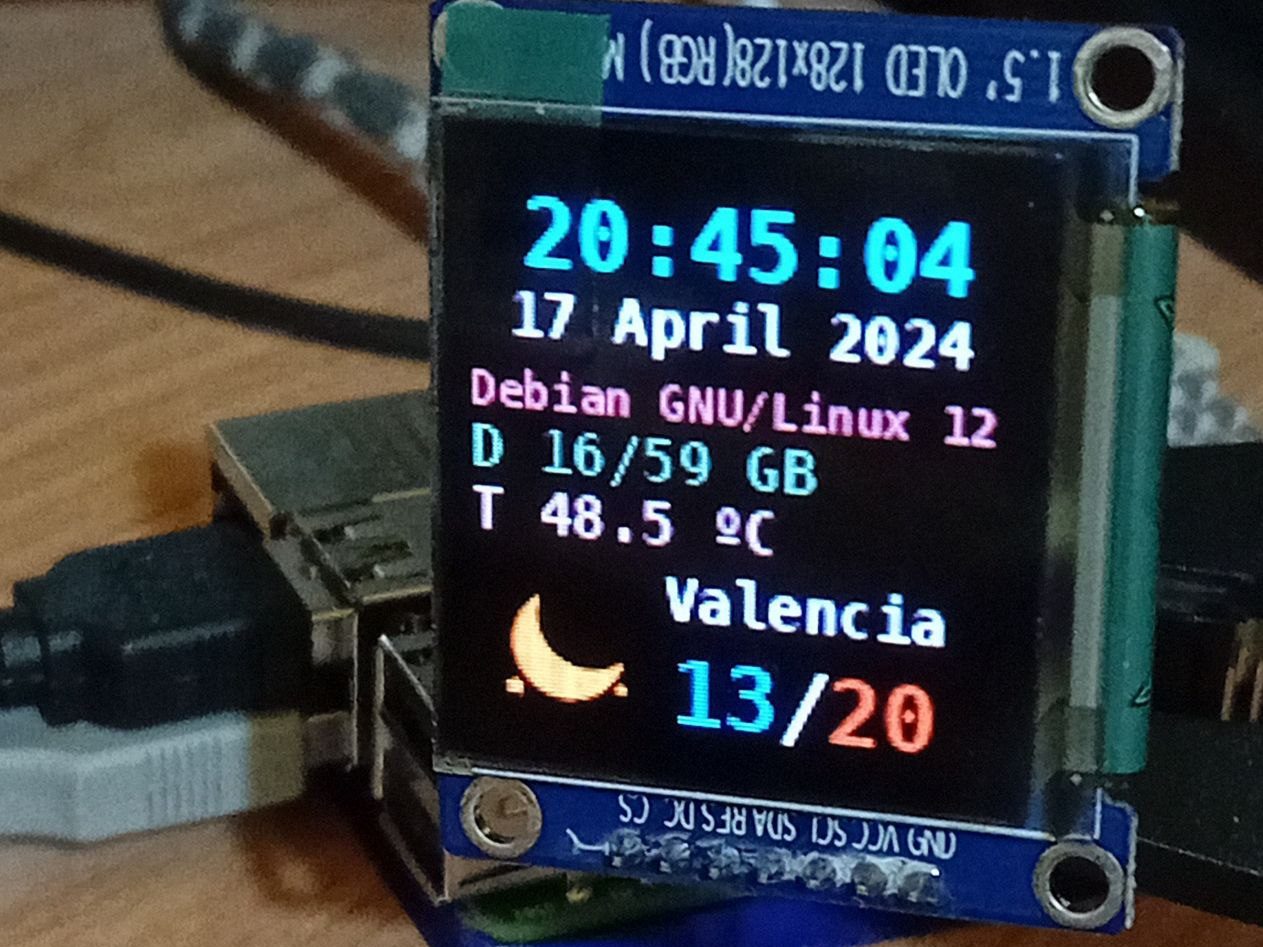
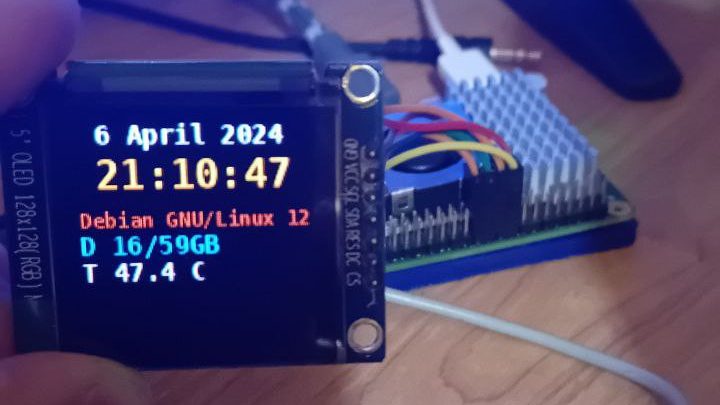
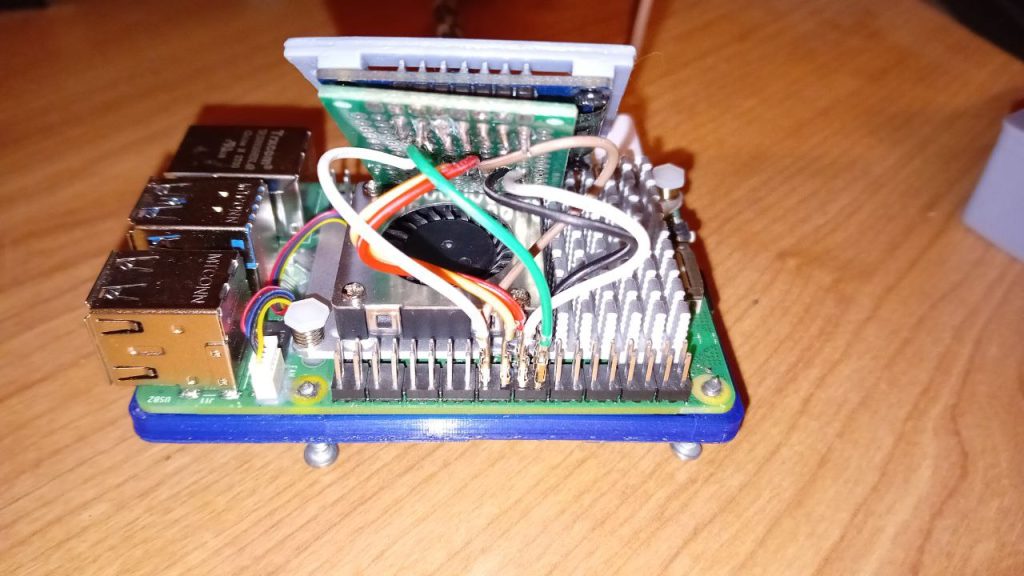
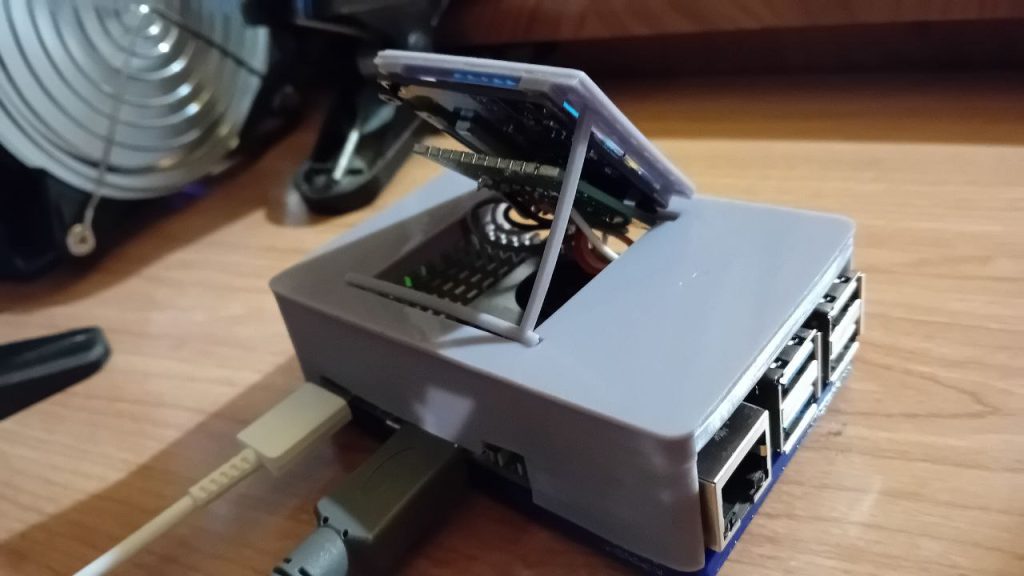
I was already monitoring a series of variables from my Raspberry Pi 5 using an OLED screen, as it's explained in this other post:
https://theroamingworkshop.cloud/b/en/2655/case-oled-display-for-raspberry-pi-with-status-panel/
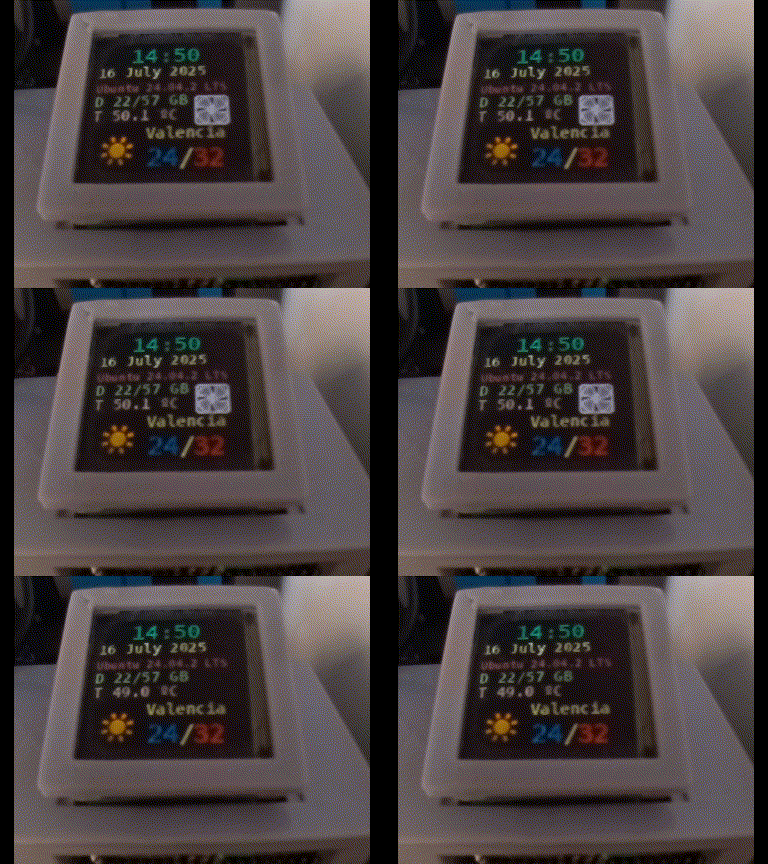
Let's now add an indicator with the status of the fan!
I've included a couple of lines to the python script to retreive the fan status executing the command that we saw above:
#Fan ON/OFF
cmd = "cat /sys/class/thermal/cooling_device0/cur_state"
Fan = subprocess.check_output(cmd, shell=True).decode("utf-8")
Somewhere below I am reading a .png file for the fan:
fan_img=Image.open("~/Documents/OLED/fan-icon.png")
fan_img = fan_img.resize((30, 30), Image.BICUBIC)
And right at the display stage, I would show it if the value of Fan is different to cero (fan is ON):
if int(Fan)!=0:
    bg.paste(fan_img,(90,55))
All these changes have been updated in the Github repository for my previous display script:
https://github.com/TheRoam/RaspberryPi-SSD1351-OLED
So that's a very nice looking fan indicator for your display!

See you next time!👋